Color
management: Implementation part 1:
Setup,
working color space, anatomy of a profile
by Norman
Koren
updated Jan. 3, 2007
Thanks
to Dennis Wilkins and Jonathan Sachs for excellent suggestions and
extensive
proofreading.
Carlos
E. Mora's Spanish translation: Gestión del color:
Implementación (1ª parte).
The
series begins with an Introduction
to color management and color science. Implementation
part 1 (this page) describes how to set up color
management and
interpret the contents of
ICC profiles
(files that describe the color response of a device or a color
space). It features Picture
Window Pro, but also includes information on Photoshop. Implementation
part 2 discusses monitor profiling and workflow
details. The series
continues with Obtaining
ICC profiles
and building them with MonacoEZcolor and Evaluating
printers and ICC profiles.In this Part
1 we introduced color science and color management. In this
part we
describe how to implement color management in ICC-aware image editors.
We emphasize Picture
Window Pro,
but we also discuss Photoshop.
Implementing
color management
Implementing color management involves more
than
just turning it on-- getting the image editor (or other application) to
recognize ICC profiles and perform gamut mappings. You need to
establish
a set of procedures, known collectively as a workflow,
to deal with a number of issues. These include
| establishing
a working color space for
editing and storing images; |
| establishing
procedures for handling images from input devices, such as scanners or
digital cameras; |
| establishing
policies for handling image files that are untagged or have different
color
spaces; |
| creating
or selecting the monitor
profile and selecting the monitor rendering intent; |
| selecting
the printer profile and rendering intent. |
The colors in the above
table are keyed to the
simplified image flow diagram, below, as well as the table
of color management settings for Picture Window Pro and the detailed
image flow diagram in the Workflow summary in Implementation
part 2.
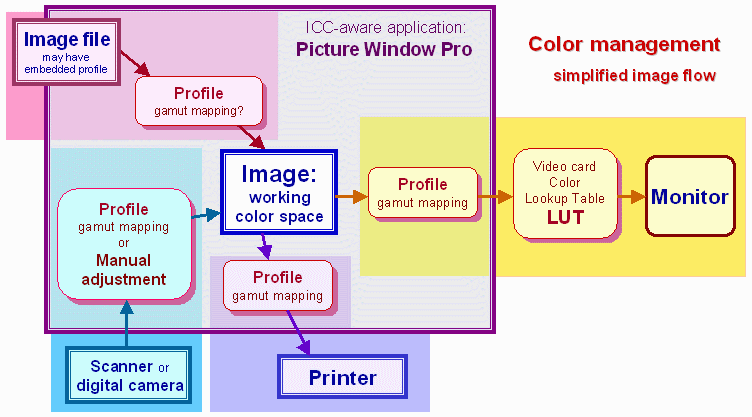 The
gamut mappings, performed by the color engine under the control of
ICC profiles, are what distinguishes a color-managed workflow. We
describe
them in the remainder of this page. The large number of details make
color
management an awkward subject. We present it in the following sequence.
The
gamut mappings, performed by the color engine under the control of
ICC profiles, are what distinguishes a color-managed workflow. We
describe
them in the remainder of this page. The large number of details make
color
management an awkward subject. We present it in the following sequence.
By the time you finish this tutorial you'll be intimately
acquainted
with "the devil in the details," and how it can bite you if you're not
careful.
Color
management setup
| Picture Window Pro,
supports
color management with Windows 98, ME, 2000, XP, or later. To enable it,
Click File,
Color
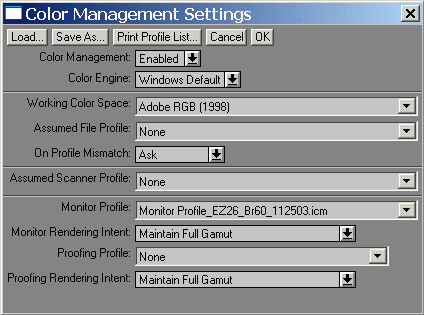
Management... This brings up the dialog box shown on the
right.
Then set Color Management:
to Enabled.
The dialog box settings are applied immediately and remain in effect as
long as the box is open; you can leave it open as long as you want.
When
you close the box, you will be asked, Save
modified settings? Click Yes
to retain the new settings. Click No
to revert to the previous settings. You can also load save settings.
Merely enabling color management has only one effect. Embedded
profiles
in image files are recognized. Files without embedded profiles are
assumed
to be sRGB, and no gamut mappings are performed. To unleash the power
of
color management, you need to make appropriate dialog box settings,
summarized
in the table below. Settings that require particular attention are
highlighted
in red and discussed afterwards.
To determine if an image has an embedded ICC
profile, right-click on
it and select Display Info. |
|
 |
..Color
Management Settings for Picture Window Pro
..
Settings
that require special attention are highlighted in red;
recommendations are in violet. |
| Box |
Settings |
Recommendations
and comments |
| Color Management: |
Disabled
or Enabled |
Enabled
turns on color management. |
| Color Engine: |
Windows Default
(ICM 2.0) or lcms (Little
CMS) |
Windows
Default.
Lcms probably works equally well. |
| Working Color
Space: |
Choice of profiles*or
None
(The actual working color space
of an image can be determined
by right-clicking on the image, clicking on Display
Info and observing the Color
Profile
setting.)
Used differently from
Photoshop. See note below. |
Specifies
the working the color space to convert images when they are opened, if
you so choose. (See On Profile Mismatch.) Has no
immediate effect
on image appearance.
A key user decision. sRGB
is the simplest and most compatible with monitors and the Internet, but
a Medium-gamut color space such as Adobe
RGB (1998) (identical
to SMPTE-240M)
is recommended when the primary output is high quality prints. Wide
gamut
spaces present some problems. The ICC
profile of the working
color space will be embedded in the image when it is saved.
See
Working
color space, below. |
| Assumed File
Profile: |
Choice of profiles*
or None |
The
assumed color space
of an image file that has no embedded profile.
sRGB
(Windows/Internet default) is usually the best choice. The default,
None,
implies sRGB. |
| On Profile Mismatch: |
Ask/Convert/Don't
Convert |
Ask
is the best choice to start out with. The dialog box will ask for the
rendering
intent. (Don't
Ask/Don’t Tell was omitted.) |
| Assumed Scanner
Profile: |
Choice of scanner profiles*
or None |
I
recommend NONE
if the profile can be selected in the scanner driver. Otherwise select
the appropriate profile here. It should not be selected in
both;
the profile would be applied twice. If you set the scanner profile
here,
the imported file will contain original scanner data with the scanner
profile
embedded. You may be asked if you want to convert it into your working
color space. Selecting the profile in the scanner driver software
reduces
the chance of error; the results are identical. |
| Monitor Profile: |
Choice of profiles*
or None |
You
should use the profile created by your monitor profiling program. It's
a good idea to check it with ICC
Profile Inspector
to be sure the TRC (tone response
curve) tags
agree with the value of gamma set during calibration (usually 2.2). If
your monitor profile has a different gamma, use sRGB
IEC61966-2.1,
which is an essentially
neutral profile with gamma = 2.2 and R, G, and B primaries close to
typical
CRT monitors. If None is set, images are sent to the monitor without
gamut
mapping. This can result in significant errors for working spaces other
than sRGB.
See
Monitor
profiling. |
| Monitor Rendering
Intent: |
One of the four rendering
intents |
Maintain
Full Gamut (Perceptual) is the best
choice in most cases. |
| Proofing Profile: |
Choice of printer profiles*
or None |
None,
most
of the time. Used mainly by the printing industry to preview
low gamut
CMYK printing press output on the monitor. To preview a
printer/ink/paper
combination, select the appropriate profile. May not work well with
high
quality inkjet printers. Compare it with your printed output to see if
it works for you. |
| Proofing Rendering
Intent |
One of the four rendering
intents |
Preserve
Identical Colors and White Point (Relative
colorimetric) or Maintain
Full Gamut (Perceptual). Try both; the
difference can be
significant with large gamut working color spaces. Inactive when
Proofing
Profile is set to None. |
| Monitor
Calibration |
(Removed
from current versions
of PW Pro. It set the LUT, overriding other calibration settings.) |
Disabled |
*The
profile names are the descriptions in the profile desc
tag, not
the file name.
Photoshop
color management is more error-prone than Picture Window Pro. Because
Photoshop
tries to be all things to all people-- in the graphics and printing
industries
as well as in photography, it has a number of obscure settings that must
be set correctly for the monitor image to display correctly.
| Photoshop
6, 7, CS |
Click
Edit,
Color
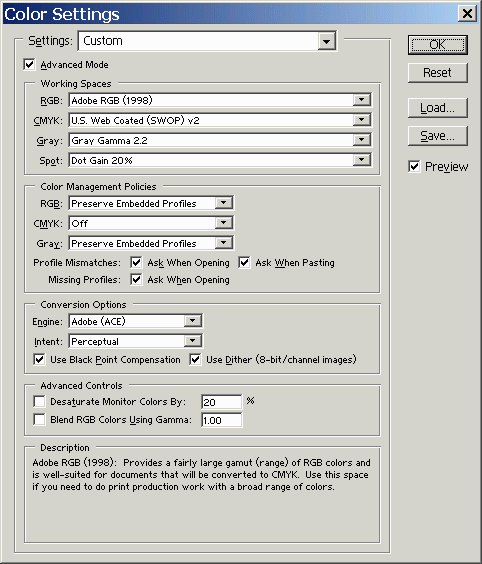
Settings. The box on the right appears. CMYK
and
Spot settings
don't apply to most
photographic workflows. Placing the cursor over any of the boxes brings
up a description (shown for Adobe RGB (1998)). I recommend starting out
with the settings on the right, which you can save and load.
| Settings: |
Can be set to Color
Management Off, Custom, or one of several presets, most of which are
intended
for publishing. Custom turns on color management and allows you to make
selections. |
| Turns
Color Management on or off. |
Working Spaces
RGB |
The
safest choices are Adobe
RGB (1998) and sRGB IEC61966-2.1. |
| Gray |
Use
the settings shown on
the right. |
| Color Management Policies,
Check boxes |
Correspond
to On Profile
Mismatch and Assumed Profile in Picture Window Pro, above. |
| Advanced Mode |
When
checked, the Conversion
Options and Advanced Controls sections shown in the box on the right
appear.
There are also more options for Working Spaces. Use the settings on the
right unless you have good reason to change them. Microsoft ICM is also
available as an Engine; it probably makes little difference. The two
intents
of interest to photographers are Perceptual (usually preferred) and
Relative
Colorimetric. |
|
|
|
| Differences
in image appearance between Photoshop and other programscan
be caused by a number of factors; this can be a major source of
frustration.
Get
one setting wrong and Photoshop's color management will bite you; your
prints won't match your monitor image. |
The
embedded ICC profile affects
the appearance of images in ICC-aware programs. To view it in Photoshop,
the Status Bar at the bottom of the window should be displayed. If it
isn't,
click on Window and check Status Bar. Click on the triangle  in the Status bar and select Document Profile. In Picture
Window Pro,
right-click on the image and
select Display Info. In color-managed
workflows it's always good practice to embed ICC profiles in image
files.
in the Status bar and select Document Profile. In Picture
Window Pro,
right-click on the image and
select Display Info. In color-managed
workflows it's always good practice to embed ICC profiles in image
files. |
| Working
Color Space settings are handled
differently in Photoshop
and Picture Window Pro. In Photoshop,
images with no embedded profile are assumed to have the color space
specified
by Working Spaces: RGB. Changing it immediately changes the appearance
of the image. In Picture
Window Pro,
images with no embedded profile may be converted to the Working Color
Space
when they are opened, depending on the Assumed File Profile and On
Profile
Mismatch settings. Images opened with no embedded profile are assumed
to
have the Windows-default sRGB profile. Changing Working Color Space or
Assumed File Profile has no immediate effect on image appearance. |
| Monitor
profile. Photoshop
uses the Windows
Default monitor profile
to gamut-map the image from the working color space to the monitor. To
see or change the Default monitor profile, open the Control Panel and
click
on Display, Settings, Advanced, Color Management. In Picture
Window Pro the monitor profile is selected
by the user. No gamut mapping takes place if "None" is
selected. To
obtain the same display as Photoshop, the Windows Default monitor
profile
should be selected. |
| Soft
proofing should be turned off unless
you are previewing
a specific printer. (Soft proofing works best for 4-color offset
printing,
where the color gamut is smaller than most CRT monitors. It may not
work
as well for high quality inkjet printers.) In Photoshop,
click on View and make sure Proof Colors is unchecked. In Picture
Window Pro, Proofing Profile should be set to
"None." |
| Miscellaneous
Photoshop Color Settings. Desaturate
Monitor Colors By
should be unchecked. Engine should have little effect on image
appearance.
Choices are Adobe (ACE) and Microsoft ICM. If your image doesn't have
an
embedded ICC profile, be sure Working Spaces RGB is consistent with the
image's color space. |
|
Working
color space
The
choice of a working color space has a significant effect on the gamut
of the final print, especially with high quality 6+ ink inkjet
printers. With Gamutvision,
a powerful utility written by the author of this tutorial, you can
clearly see how the working color space affects the final print gamut.
Without
color management
the Windows default sRGB color space is assumed. sRGB has a limited color gamut, approximating that of the
average
computer monitor. When you print on a high quality inkjet printer,
which
has a larger gamut, you adjust the printer driver settings to take
advantage
of the device gamut. You might, for example, boost the Saturation
setting,
as I've described in Printer
calibration.
A color space can be associated with an image when
it is opened or at
any time during an editing session. But it's a good idea to make the
association as
early as possible in the editing process— during scanning or RAW
conversion, if possible. Settings and techniques for performing
the
association are summarized in the table below.
| Attaching
color spaces to images |
On
open |
During
the editing session |
| Picture
Window Pro |
Determined
by three Color
Management Settings: Working Color Space, Assumed File
Profile, On
Profile Mismatch. The user may be asked what action to take. |
Click
on Transformation,
Color, Change Color Profile... Pay attention to the Change setting. Use
Input Data and Profile setting to convert between color spaces. Use
Profile
Setting Only to attach a profile without changing the image data.
Details
in
Implementation
part
2. |
| Photoshop |
Determined
by Color Settings for
Working Spaces and Color
Management Policies. The user may be asked what action to
take. |
Click
on Image, Mode, Assign
profile... or Convert to Profile... |
| When an image with an associated color
space is saved, the ICC profile
of the color space is embedded
in the image file-- saved along with it. This doesn't increase the
stored
image size by much because color space profiles are tiny. In
a color managed workflow it's always good pratice to embed ICC profiles
in images. Otherwise confusion can
result. Photoshop, for
example, treats images without embedded profiles differently
from Picture Window Pro and other applications.
The gamuts of several color spaces are shown in the chart on
the right,
which has been adapted from Jonathan Sachs' Color
Management tutorial. See pp. 10-14, for details.
Color spaces can
be divided into three categories.
Small-gamut spaces have gamuts comparable to CRT
monitors. sRGB
(gamma = 2.2, white point = 6500K) is the default color space for
Windows
and the World Wide Web. PAL/SECAM and SMPTE-C are appropriate for video
output. sRGB is weak in green and cyan (but not as weak as the
perceptually-nonuniform
xy chart indicates). If you're working in another color space, you'll
need
to convert to sRGB for Internet display.
Medium-gamut spaces have gamuts somewhat
larger than CRTs; comaprable
to high quality (more than 4-color) inkjet printers. Adobe
RGB (1998) (same as SMPTE-240M)
is the best known. Gamma = 2.2; white point = 6500K. Adobe
RGB (1998) is the most widely recommended color space when the primary
output is high quality inkjet prints.
Most shops that
make LightJet prints prefer Adobe RGB (1998) or similar color spaces. |
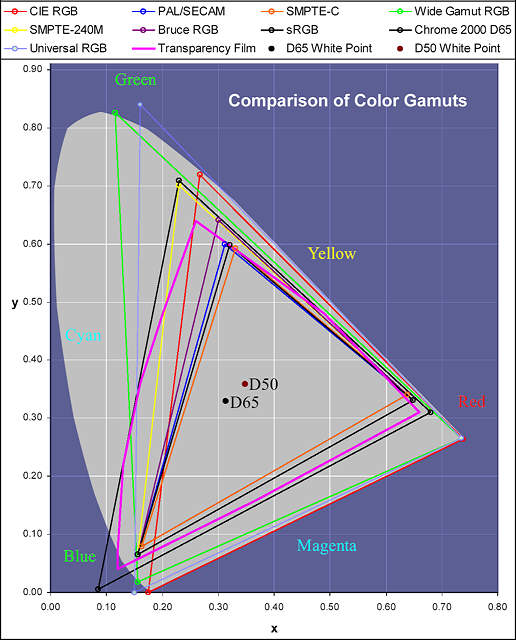 |
Wide-gamut
spaces have gamuts much larger than CRTs or inkjet
printers, often comprising most of the colors the eye can see-- and
sometimes
"colors" the eye can't see. Wide gamut RGB, Universal RGB, CIE RGB,
Chrome
2000 D65, and Kodak
ProPhoto RGB are examples. The gamut of Chrome 2000
approximates that
of transparency film. When colors in wide gamut spaces are squeezed
into
monitor or printer color spaces using perceptual rendering intent, clipping and color shifts may take place (predictable with Gamutvision image analysis;
unpredictable otherwise). Since half or less of the total gamut can be
reproduced
on monitors or printers, using a wide-gamut space sacrifices bit
depth--
something you can ill afford when which working with 24-bit color,
which
has a bit depth of 8. The solution is to work with 48-bit
color. See Bruce Fraser's article, The
High-Bit Advantage. Wide-gamut spaces can
be tempting; a number of experts recommend them. I'm not among them. There are alternative views: RIMM/ROMM RGB Color Encodings by Spaulding, Woolfe and Giorgianni makes a strong case for wide-gamut spaces (RIMM/ROMM is the same as ProPhoto).
| RGB
color spaces are strongly preferred over CMYK
for photographic reproduction. All high quality (more than 4-color)
inkjet
printers must be driven by RGB data; they aren't really CMYK because of
the additional colors. CMYK spaces are device-dependent, limited in
gamut,
and there is no unique representation of colors in CMYK-- different
gray
component replacement algorithms are appropriate for different printers
and intents. CMYK is best left to the 4-color printing industry.
Picture
Window Pro doesn't support CMYK. |
|
| Why
not use CIEXYZ or CIELAB as a working color space? |
| They are device-independent, referenced by ICC profiles, and
their
color gamut includes the entire range of human vision. Two
reasons. (1) They are not intuitive.
The meaning of each
coordinate is more obscure than RGB. (2) The full gamut of human vision
encompasses only about 30% of the numerical values in these spaces.
(The
diagram above only shows x up to 0.8 and y up to 0.9; there's a lot
more
empty space.) Wide-gamut spaces use about 25%; narrow-gamut spaces such
as sRGB are down to 15%. This is equivalent to losing 2 bits of
numerical
precision. In 24-bit RGB files, which have an 8-bit color depth, only 6
bits would remain-- not enough for good tonal rendition. This isn't a
problem
for 48-bit color images, which have a 16-bit color depth. |
|
|
Working color
space recommendations. The
safest color spaces have gamuts comparable to (or slightly larger than) the preferred output
devices.
This minimizes color distortion when files are mapped with perceptual
rendering
intent; it also minimizes the risk of clipping out-of-gamut colors with
relative colorimatric intent.
sRGB
is the default working color space for the Web. Adobe
RGB (1998) is
widely recommended when
the primary output is high quality inkjet printers. There is some
unresolved
controversy about the use of wide gamut spaces; they might be OK when
used
with 48-bit color images. If you want to study color spaces, gamut mappings, and rendering intents in depth, I recommend Gamutvision. (As the author of Gamutvision I can't claim to be unbiased.)
Real-world images and color spaces
In the presentation Metrics for Comparison of
Color Encodings
(CIE TC8-05) by
Kevin Spaulding and Gus Braun of
Kodak, available online from colour.org,
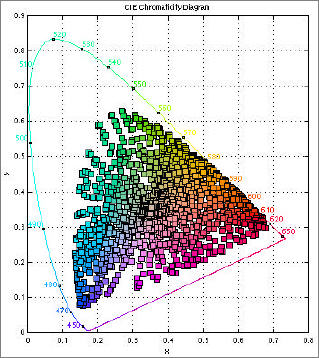
the authors have created a CIE xy diagram representing the full range
of colors available from reflective surfaces. They used a wide variety
of sources (graphic arts spot colors, etc.) to assemble this diagram
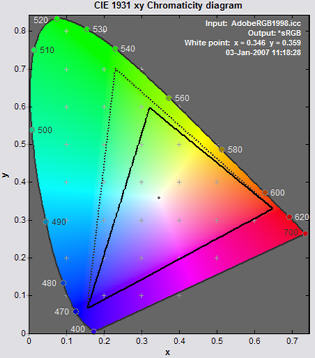
(slide 5 in the presentation). It is instructive to compare their
results to the two best known color spaces, sRGB and Adobe RGB (1998).
Real-world reflective colors |
Adobe RGB (dotted), sRGB (solid) |
Although the eye can see more highly chromatic colors than these
(the outer horseshoe), they are extremely rare in nature. The best
examples are the vibrant colors of a prism in the sun and some rare
irridescent butterflies— colors that can't be reproduced by standard
output devices (monitors or printers). Adobe RGB (1998) encompasses
most of the reflective colors; only a few reds and cyans are out of
gamut, and not by much. The eye is not extremely sensitive to chroma
differences in highly saturated colors. So Adobe RGB is a safe,
conservative choice for a working color space. sRGB is clearly weaker
in greens and cyans. It's the standard color space of Windows and the
internet— by far the most convenient, foolproof choice , but Adobe RGB
is preferred when the intended output is high quality inkjet prints.
The reader is cautioned that the CIE 1931 xy chromaticity diagram
has several well-known limitations. The space occupied by the greens is
exaggerated, and the 2D representation has no information on
the lightest or darkest colors.
View
image galleries
.
.
.
An
excellent opportunity to
collect high quality photographic prints and support this website |
. |

|
|
| The
anatomy of a profile |
 ICC
profiles consist of a header and and a set of tags, which contain the
bulk
of the data. ICC
profiles consist of a header and and a set of tags, which contain the
bulk
of the data.
You can examine the contents of profiles with ICC
Profile Inspector,
which you can download from the ICC
Resource Center by clicking on CONTINUE
and following the instructions. When you run it, click Browse...
to load the profile. The header information and tag table are
displayed.
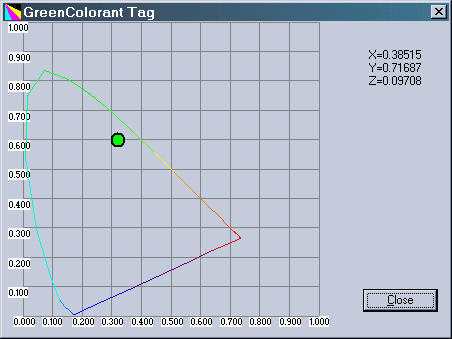
Double-click on a tag to see its contents. A typical tag, gXYZ (green
primary
color), is illustrated on the right.
There are three classes of profile, indicated in the
Device Class field
of the header: Input ('scnr'), Display ('mntr'), and Output ('prtr').
Each
has a set of required tags and a set of optional tags. Display profiles
are used to define color spaces. Many monitor profiles contain the
://developer.apple.com/techpubs/mac/ACI2.5/WhatsNewColorSync25.6.html">vcgt
tag for setting lookup tables when a loader
program is run, i.e., for calibrating the
monitor.
The meaning of the tags is specified in the
formidable (126 page) ICC
File Format for Color Profiles (Version 4.0.0), which is rich
in content
and readable if you skip the bureaucratic parts (strong coffee
recommended).
In most cases the meaning will be obvious from the ICC
Profile Inspector
display. The basic tag signatures (4-character abbreviations) are
-
desc is the description of the profile, used in PW
Pro selection
boxes.
- rXYZ, gXYZ and bXYZ
specify the R, G, and B primaries
that determine the gamut of the color space or device.
 wtpt is the white point. The two standard
white points are 6500K
(D65): X=0.95045, Y=1.0, Z = 1.08905, and 5000K
(D50): X=0.96429,
Y=1.0, Z=0.82510. Y is always 1.0 and Z varies the most. Used for
absolute
colorimetric gamut mapping, which is of little interest to
photographers. wtpt is the white point. The two standard
white points are 6500K
(D65): X=0.95045, Y=1.0, Z = 1.08905, and 5000K
(D50): X=0.96429,
Y=1.0, Z=0.82510. Y is always 1.0 and Z varies the most. Used for
absolute
colorimetric gamut mapping, which is of little interest to
photographers.
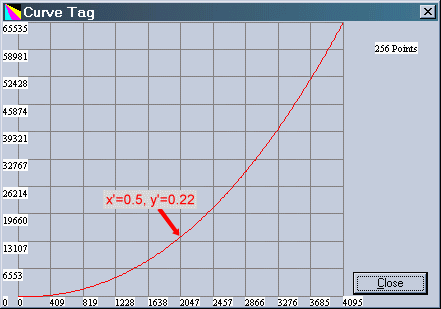
- rTRC,
gTRC and bTRC are the
R, G and B Tone Reproduction Curves that define device or color space
gamma
in Input and Monitor profiles. An example (gTRC) is shown on the right.
Gamma
is often indicated on the upper right.
If it isn't, it
can be calculated from
.
where x' = x/xmax
, y' = y/ymax
,
and y5 = y' at x'=0.5 (the middle of the x-axis)
= 0.22 (in
the curve on the right). Typical values: y5 =
0.287 for gamma
= 1.8, 0.25 for gamma = 2.0; 0.218 for gamma = 2.2. [ This equation can
be easily derived from (y/ymax) = (x/xmax)gamma
].
- AToBn or
BToAn are gamut mapping tables
used
in printer profiles. A refers to the device; B refers to the profile
connection
space (PCS);
n = 0 for perceptual, 1 for colorimetric or 2 for
saturation
rendering intent. BToAn tags are
used for printing; AToBn
are used for proofing (previewing the print). These tables are large. Profiles that contain
them
can be several hundred kilobytes-- sometimes over a megabyte. TRC
tags are omitted in printer profiles. All the printer profiles I've
examined
have gamt (out-of-gamut) tags, but little
information is available
about them. The best way to examine the actual performance of printer profiles is with Gamutvision.
All monitor profiles have gamma information in TRC tags, and
most of them
have Lookup table (LUT) loader information in private tags (vcgt
or Mtbx). If
you calibrate your monitor
to gamma = 2.2, the TRC tags should have curves consistent with gamma =
2.2, but sometimes they are inconsistent. But there
are many profiles
out there incorrect values of gamma (not 2.2 when they're supposed to
be).
See below. Don't
use them! You're better
off with sRGB IEC61966-2.1,
which is
an essentially neutral profile with gamma = 2.2 and R, G, and B
primaries
close to typical CRT monitors. It's a good
idea to check the TRC tags in monitor profiles.
Manufacturer-private
tags make it difficult to figure out what a profile is
supposed to
do. An example is vcgt
(Video card gamma tag, registered
to Apple), widely used in monitor profiles (Adobe, Monaco, etc.) to set video card LUT's. It is not to be found in the ICC
specification. Another example: Mtbx,
in the monitor profiles created by Adobe Gamma and MonacoEZcolor. Try
searching
Google
and you'll find pages on mountain bikes. Here is what the spec says (p.
3): "Private
data tags allow CMM developers to add proprietary value to their
profiles.
By registering just the tag signature and tag type signature,
developers
are assured of maintaining their proprietary advantages while
maintaining
compatibility with this specification. However, the overall philosophy
of this format is to maintain an open, cross-platform standard,
therefore
the use of private tags should be kept to an absolute minimum."
And that is how things would be in the best of all possible worlds. Of course a profile's actual performance is more than the sum of its parts. To see how a profile functions with different rendering intents under a variety of conditions, you'll need Gamutvision. |
|

|
Images
and text copyright (C) 2000-2013 by Norman Koren. Norman Koren lives
in Boulder, Colorado, where he worked in developing magnetic recording
technology for high capacity data storage systems until 2001. Since 2003 most of his time has been devoted to the development of Imatest. He has been involved with photography since 1964. |
 |